Association levels
Processing a given type of data (e.g., science frame) requires certain calibrations (e.g., flat field) that match
similar properties (e.g., taken with the same filter). The rules on how to associate a given calibration to a given file
requiring it are encoded
within the workflow. There could obviously be many calibrations that matches the association criteria (e.g., many flat
fields taken with the same filter). In this case,
EDPS associates the closest in time. However, having found a calibration does not mean that that calibration delivers a
trustful reduction (e.g., the flat could be 5 years old).
Therefore, in EDPS there is the concept of “association level”, or “quality level of the association”, typically a
quality level is associated to a validity time range that
can differ for different types of calibrations and instruments. EDPS first looks for calibrations that satisfy the first
quality level (e.g., 24 hours), associated to the instrument calibration plan (labeled, for convention, as level=0).
If a calibration in that validity range is not found, then calibrations within the second validity range are searched (
e.g., 2 days), and so forth until the last validity time range (e.g. 3 months)
encoded for that calibration (labelled, for convention, to quality level=3). Calibrations outside the last validity
period are not associated.
It is possible to see the quality level of each association in the dataset description. One can therefore decide whether
the level of association is enough, or to look for other calibrations in the archive.
The convention of the association levels is the following, the time range of the different levels obviously depend on
the instrument and on the calibration itself:
level < 0. Calibrations more restrictive than the calibration plan are selected.
level = 0. Calibrations that follow the rules of the instrument calibration plans are selected.
level = 1. The selected calibrations are sufficient to ensure good quality science results.
level = 2. The selected calibrations “probably” produce results of still “acceptable” quality.
level = 3. Significant risk of bad quality results or recipe failure.
Reduction configuration editor
The data reduction of each dataset can be configured according to the scientific needs using an appropriate configuration editor. This editor allows to configure the data reduction for a given dataset by specifying workflow and recipe parameters.
The EDPS workflows contain two types of parameters and they both have default values that can be modified to improve the data reduction.
Workflow parameters are global and they are applied to the entire workflow. They are accessible both in the
Raw Datatab, prior to the creation og a dataset, and in theReduction Configurationeditor, in theReduction queuetab. Note: some workflow parameters were already configured before creating the dataset and sending it to the reduction queue. Here, they can be changed again. Please, note that the parameters have an effect only on the files that are already in the dataset. If one specifies a parameter that should include extra files in the dataset (e.g., the inclusion of more calibrations), files are not added and the reduction might fail. If you need to change a parameter that modifies the dataset content, please go back to the Raw data tab and create a new dataset.Recipe parameters are specific to the individual recipes and can be configured per task. They are accessible in the
Reduction Configurationeditor, in theReduction queuetab.
To open the Reduction configuration editor, click on
the wheel button  next to the dataset you desire to configure the reduction for. A window with the
configuration editor appears as shown the figure below.
next to the dataset you desire to configure the reduction for. A window with the
configuration editor appears as shown the figure below.
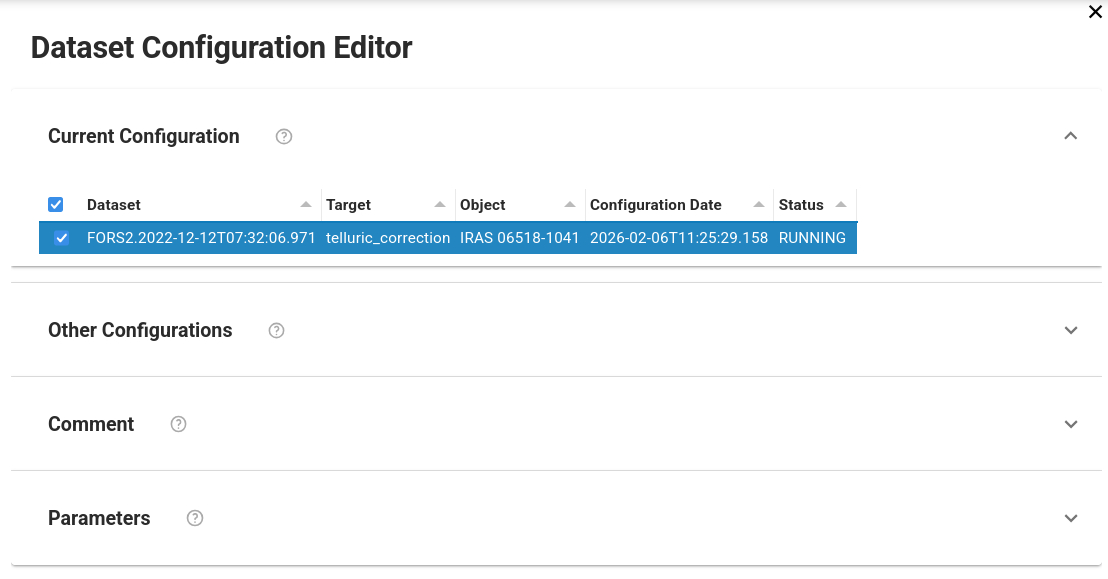
The Reduction Configuration editor.
The editor is divided into 4 parts, which can be accessed pressing the corresponding expansion arrow.
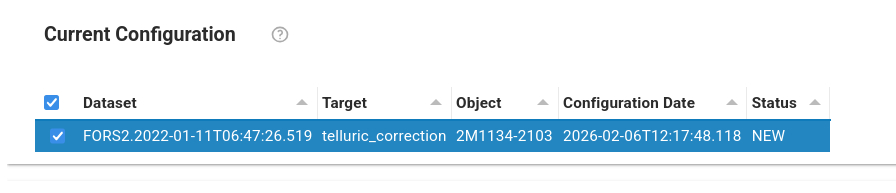
Current configuration It indicates the name of the selected configuration for a given dataset.
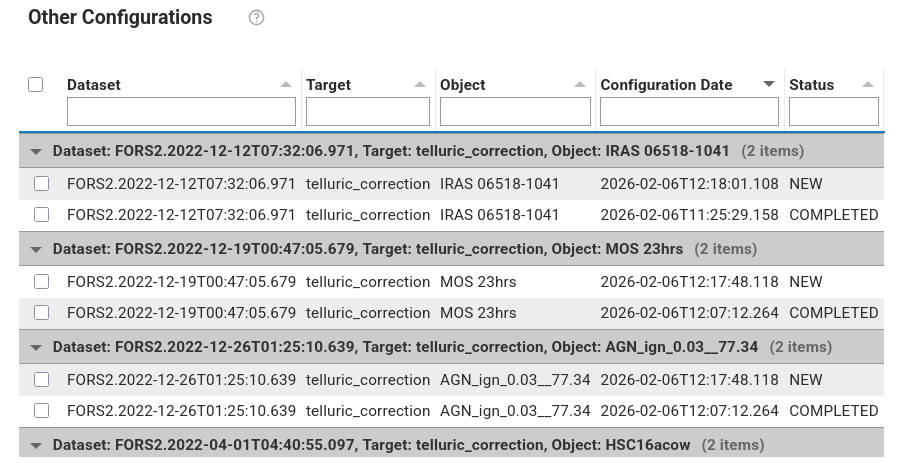
Other configurations It allows to specify other configurations, to which the changes shall be copied to.
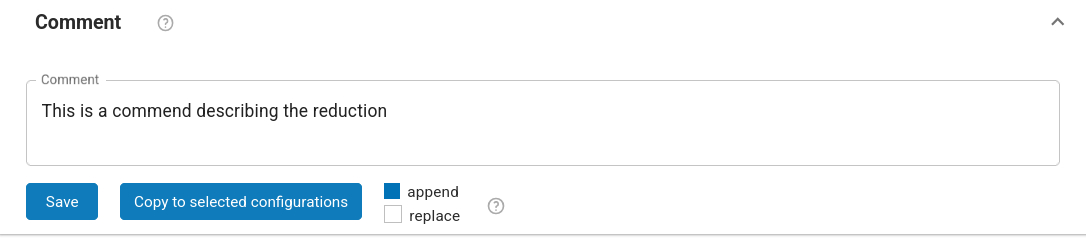
Comment It allows to specify a comment to describe the configuration. It is possible to append or replace a comment. Comments can be changed on all configurations. It is possible to save the comment for the current configuration only, or for all the selected configurations.
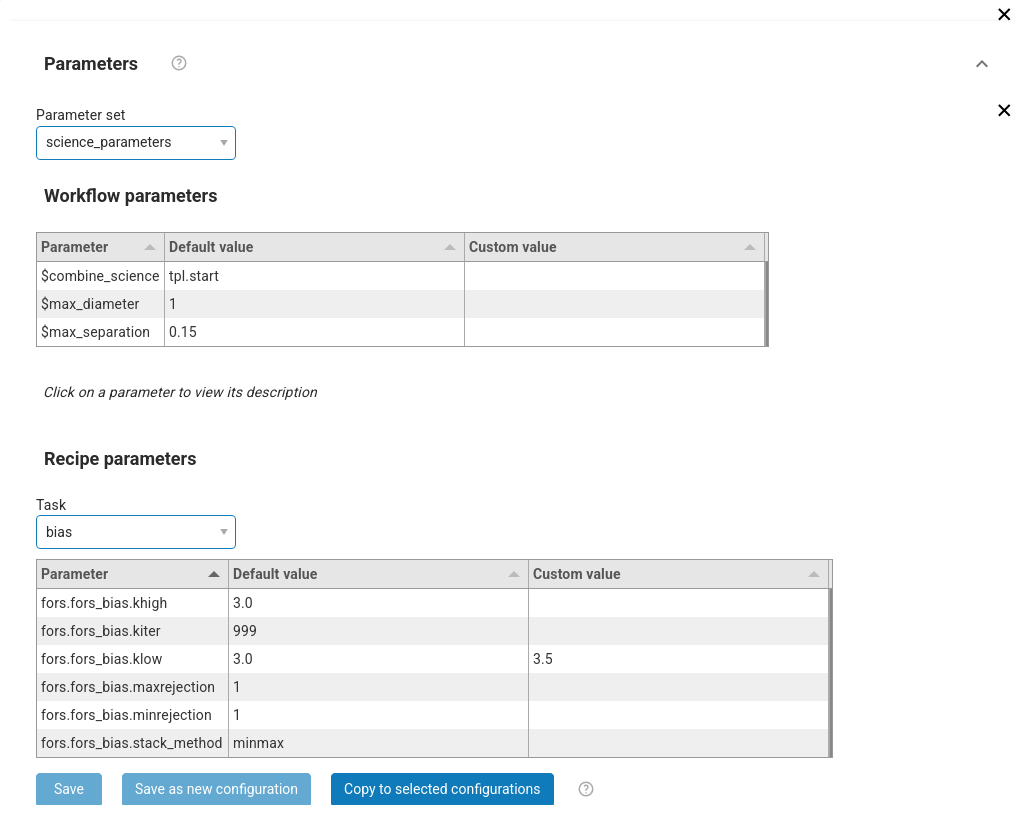
Parameters
This window is visible allows to:
Select the parameter set. A pre-determined list of workflow parameters and recipe parameters for a given use case. For the majority of the cases, the “science” parameter set can be used.
Edit the workflow parameters. These are parameters that regulates the reduction strategy, e.g. whether to use a given calibration or not, or to trigger a certain reduction step. Note that if the changes imply that some files not in the dataset are needed, the reduction might fail. In case, go back to the raw data tab, edit the workflow parameters there, and recreate the datasets.
Edit the recipe parameters. These are parameters associated to the recipe of a given task. Note: the same recipe parameters can be configured differently for the tasks that run the same recipe. Default parameters are shown (albeit some parameters can be dynamic, e.g.
EDPSchanges their value depending on the type of input data).
Change the values according to the needs and then select whether to save it to the current or the selected configurations. Note, complete configurations cannot be modified, new configurations will be automatically created instead.