Customizing the data reduction 
Selection of most appropriate calibrations
By default, EDPS associates raw calibrations to the reduction process. It is also possible to use pre-processed calibrations (a.k.a. master calibrations) if available, in order to speed up the reduction. The preference can be specified in the Raw Data tab, before creating the datasets (see here).
Possible values of the Calibration Preferences are:
raw_per_quality_level: At equal quality of reduction, association of raw calibrations is preferred. This is the default.
master_per_quality_level: At equal quality of reduction, association of master calibrations is preferred.
raw. Association of raw calibration is preferred, despite the quality of results.
master. Association of master calibration is preferred, despite the quality of results.
When master calibrations are used, the reduction step needed to process raw calibrations are not executed. The reduction then moves directly to the process of scientific exposures.
For example, if reduction speed for a quick check is preferred over a high quality reduction, one can select “master”. In this case, old master calibrations are associated even if there are raw calibrations closer in time (and therefore more likely to ensure better quality products).
The quality level that the selected calibrations deliver is indicated close to each dataset in the
Raw input tab, under the colum CalibLevel. CalibLevel=0 indicates that
calibrations that follow the rules of the instrument calibration plans have
been selected. The higher the number, the poorer the quality of the products.
More information on the application properties file can be found here.
More explanations on the concept of “association levels” can be found here.
Quality reports
Almost all processing tasks can display the input raw frames and the products in the so called “quality plots”, which
can be inspected from the Reduction Queue window.
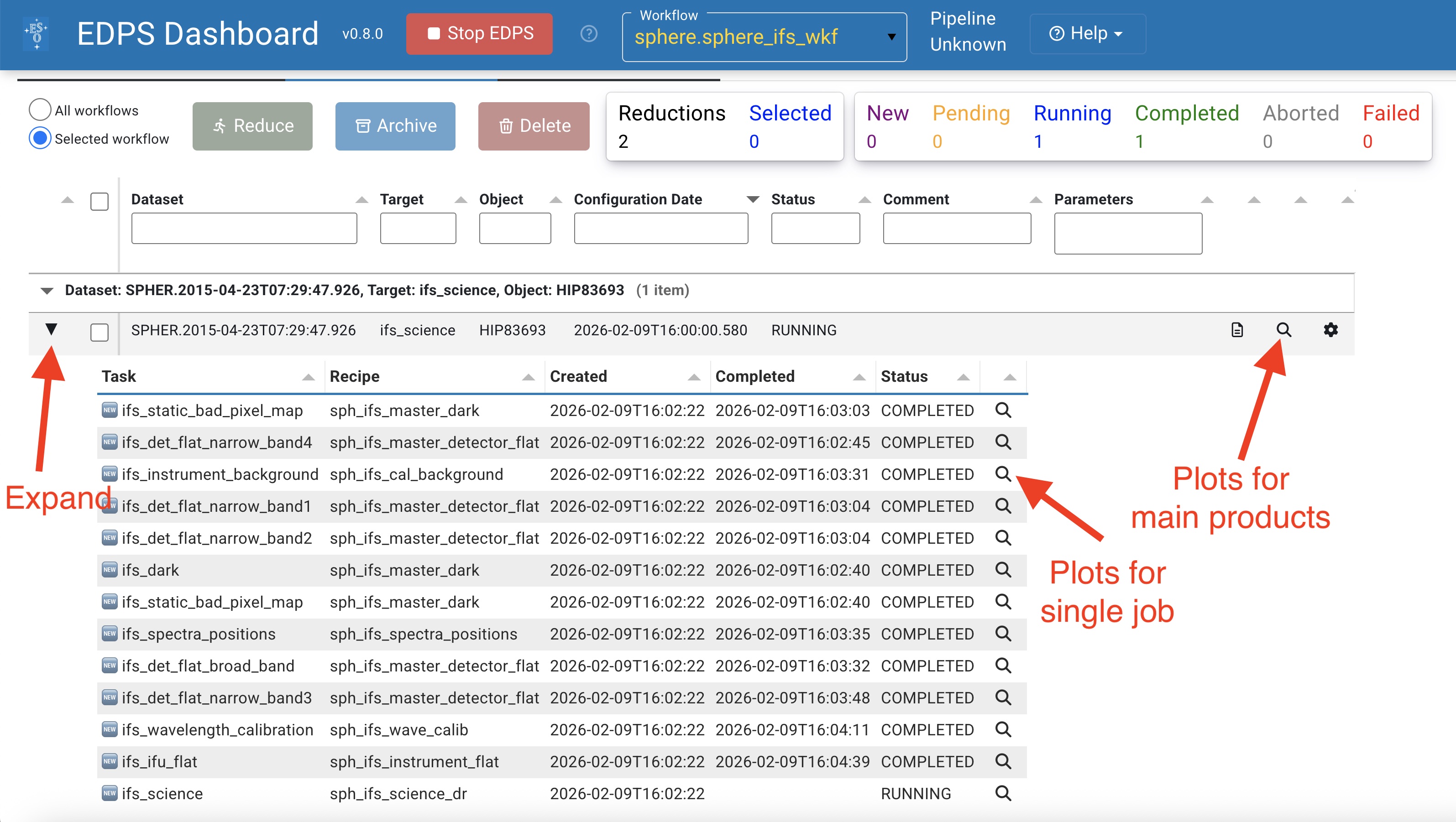
Those associated for the main product can be inspected by pressing the magnifying glass symbol at the right side of each dataset.
To inspect those associated to each individual job (if created),
Expand the desired dataset by pressing the black arrow on its left. The list of jobs will appear with the associated status (COMPLETED, RUNNING, PENDING)
Press the magnifying glass symbol at the right side of the job you want to inspect. Only plots for completed jobs can be inspected.
Configuration of parameters
The data reduction of each dataset can be configured according to the scientific needs using an appropriate configuration editor. This editor allows to configure the data reduction for a given dataset by specifying workflow and recipe parameters.
The EDPS workflows contain two types of parameters and they both have default values that can be modified to improve the data reduction.
Workflow parameters are global and they are applied to the entire workflow. They are accessible both in the
Raw Datatab, prior to the creation og a dataset, and in theReduction Configurationeditor, in theReduction queuetab. Note: some workflow parameters were already configured before creating the dataset and sending it to the reduction queue. Here, they can be changed again. Please, note that the parameters have an effect only on the files that are already in the dataset. If one specifies a parameter that should include extra files in the dataset (e.g., the inclusion of more calibrations), files are not added and the reduction might fail. If you need to change a parameter that modifies the dataset content, please go back to the Raw data tab and create a new dataset.Recipe parameters are specific to the individual recipes and can be configured per task. They are accessible in the
Reduction Configurationeditor, in theReduction queuetab.
To open the Reduction configuration editor, click on
the wheel button  next to the dataset you desire to configure the reduction for. A window with the
configuration editor appears as shown the figure below.
next to the dataset you desire to configure the reduction for. A window with the
configuration editor appears as shown the figure below.
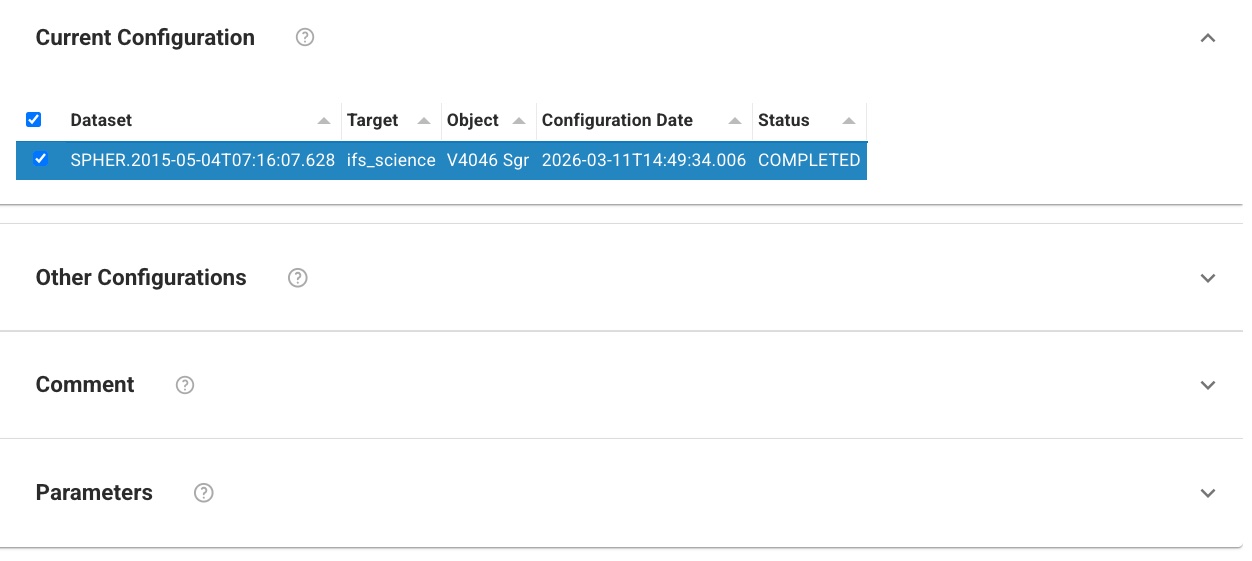
Fig. 2 The Reduction Configuration editor.
The editor is divided into 4 parts, which can be accessed pressing the corresponding expansion arrow.
Current configuration It indicates the name of the selected configuration for a given dataset.

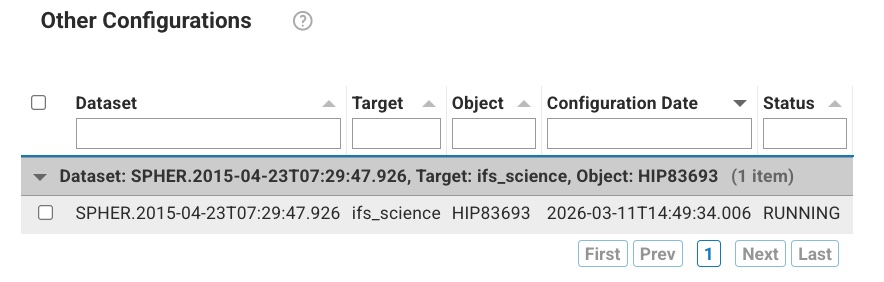
Other configurations It allows to specify other configurations, to which the changes shall be copied to.
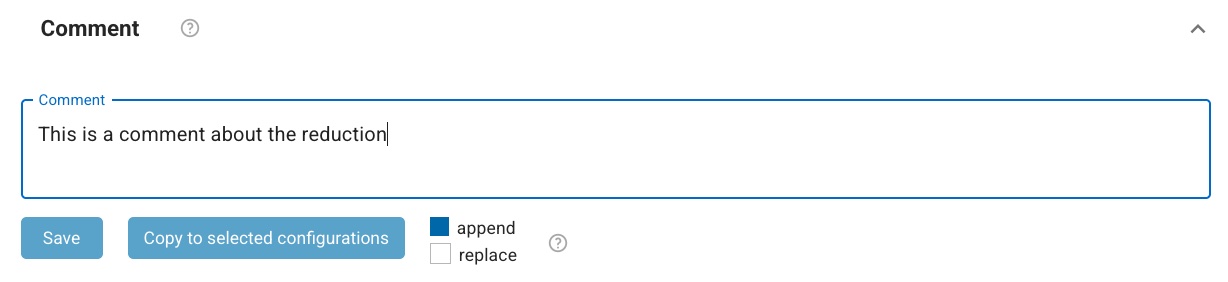
Comment It allows to specify a comment to describe the configuration. It is possible to append or replace a comment. Comments can be changed on all configurations. It is possible to save the comment for the current configuration only, or for all the selected configurations.
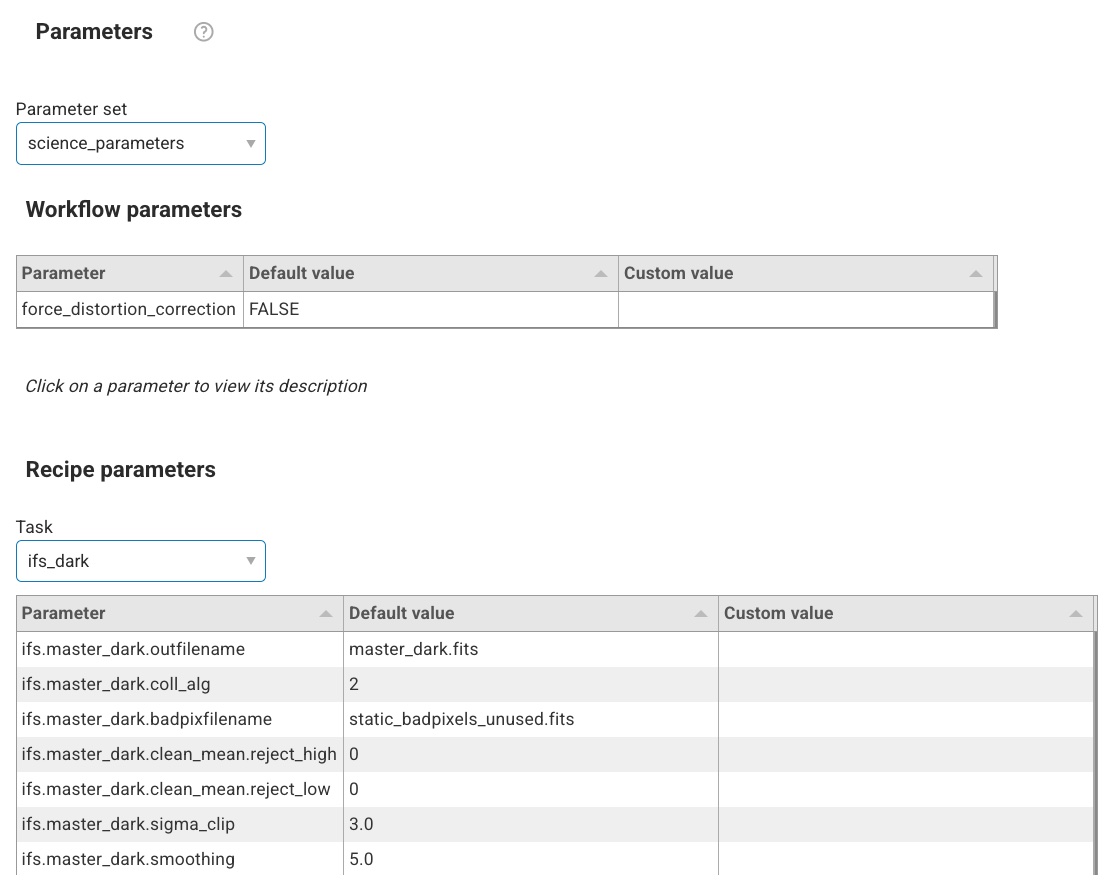
Parameters
This window is visible allows to:
Select the parameter set. A pre-determined list of workflow parameters and recipe parameters for a given use case. For the majority of the cases, the “science” parameter set can be used.
Edit the workflow parameters. These are parameters that regulates the reduction strategy, e.g. whether to use a given calibration or not, or to trigger a certain reduction step. Note that if the changes imply that some files not in the dataset are needed, the reduction might fail. In case, go back to the raw data tab, edit the workflow parameters there, and recreate the datasets.
Edit the recipe parameters. These are parameters associated to the recipe of a given task. Note: the same recipe parameters can be configured differently for the tasks that run the same recipe. Default parameters are shown (albeit some parameters can be dynamic, e.g.
EDPSchanges their value depending on the type of input data).
Change the values according to the needs and then select whether to save it to the current or the selected configurations. Note, complete configurations cannot be modified, new configurations will be automatically created instead.
Configuration and troubleshooting 
This section provides guidance on configuring the reduction, as well as diagnosing and resolving common issues encountered during the SPHERE-IFS data-reduction cascade.
Master darks 
sph_ifs_master_dark produces the detector dark-current calibration (IFS_MASTER_DARK) and generates a static bad-pixel map (IFS_STATIC_BADPIXELMAP).
If you believe too many bad pixels are detected, increase ifs.master_dark.sigma_clip from the default value of 3 to 5 to make the clipping less aggressive.
Distortion map 
The pipeline recipe sph_ifs_distortion_map, intended to measure the geometric distortion of IFS frames, has been found to be insufficiently robust.
Calibration data acquired close in time can yield inconsistent distortion solutions, including variations in the derived central axes.
When applied to science data, these discrepancies can introduce artificial distortions rather than correct them.
For this reason, the recipe is not included in the workflow.
The dominant distortion component is a stable anamorphism of approximately 0.6%. This can be corrected in a simple and reproducible way by rescaling the detector coordinates, multiplying the X and Y axes by factors of 1.0059 and 1.0011, respectively.
Wavelength calibration 
The consortium identified significant systematic wavelength shifts when using the pipeline product IFS_SPECPOS generated by recipe sph_ifs_spectra_positions.
To mitigate this issue, an ad hoc correction was developed and implemented in IDL.
The corresponding implementation within the pipeline, however, does not yet reproduce the same level of performance and remains under evaluation.
To facilitate independent verification of the wavelength solution, the recipe sph_ifs_wave_calib produces a wavelength-calibrated data cube of the arc lamp exposure.
This allows users to directly assess the quality and stability of the wavelength calibration.
Star center 
The recipe sph_ifs_star_center, which processes OBJECT,CENTER observations obtained with the IFS,
has been found to introduce significant systematic errors in the derived stellar position.
As a consequence, its output is not used by the science reduction recipe.
Spectral deconvolution 
When sph_ifs_science_dr reduces science data with ifs.science_dr.spec_deconv = TRUE,
the following recipe parameters are ignored and internally set to fixed values:
ifs.science_dr.order= 5ifs.science_dr.user_cent= FALSEifs.science_dr.cx= 0 (unused sinceuser_cent= FALSE)ifs.science_dr.cy= 0 (unused sinceuser_cent= FALSE)ifs.science_dr.reflambda= 1.0ifs.science_dr.fwhm= 2.0
These choices reflect the experience of the High Contrast Data Center.
Science data reduction 
Following the consortium recommendation, ifs.science_dr.spec_deconv is set to FALSE in recipe sph_ifs_science_dr,
as the current pipeline implementation relies on an outdated algorithm.
Because the science case is not known a priori, ifs.science_dr.use_adi is set to 0.
At the Data Center, crosstalk and bad-pixel corrections were historically performed using IDL scripts.
These algorithms are now implemented in the pipeline and can be enabled via ifs.science_dr.badpixco.apply and ifs.science_dr.xtalkco.apply (both FALSE by default).
The large-scale crosstalk correction may improve point-source detection but can negatively impact extended sources (e.g., discs).
It must therefore be enabled separately by setting ifs.science_dr.xtalkco.largescale.apply to TRUE.
Go to top
Go to SPHERE-IFS EDPS tutorial index