Overview of all the data reduction configuration options 
Selection of most appropriate calibrations
By default, EDPS associates raw calibrations to the reduction process. It is also possible to use pre-processed calibrations (a.k.a. master calibrations) if available, in order to speed up the reduction. The preference can be specified in the Raw Data tab, before creating the datasets (see here).
Possible values of the Calibration Preferences are:
raw_per_quality_level: At equal quality of reduction, association of raw calibrations is preferred. This is the default.
master_per_quality_level: At equal quality of reduction, association of master calibrations is preferred.
raw. Association of raw calibration is preferred, despite the quality of results.
master. Association of master calibration is preferred, despite the quality of results.
When master calibrations are used, the reduction step needed to process raw calibrations are not executed. The reduction then moves directly to the process of scientific exposures.
For example, if reduction speed for a quick check is preferred over a high quality reduction, one can select “master”. In this case, old master calibrations are associated even if there are raw calibrations closer in time (and therefore more likely to ensure better quality products).
The quality level that the selected calibrations deliver is indicated close to each dataset in the
Raw input tab, under the colum CalibLevel. CalibLevel=0 indicates that
calibrations that follow the rules of the instrument calibration plans have
been selected. The higher the number, the poorer the quality of the products.
More information on the application properties file can be found here.
More explanations on the concept of “association levels” can be found here.
Quality reports
Almost all processing tasks can display the input raw frames and the products in the so called “quality plots”, which
can be inspected from the Reduction Queue window.
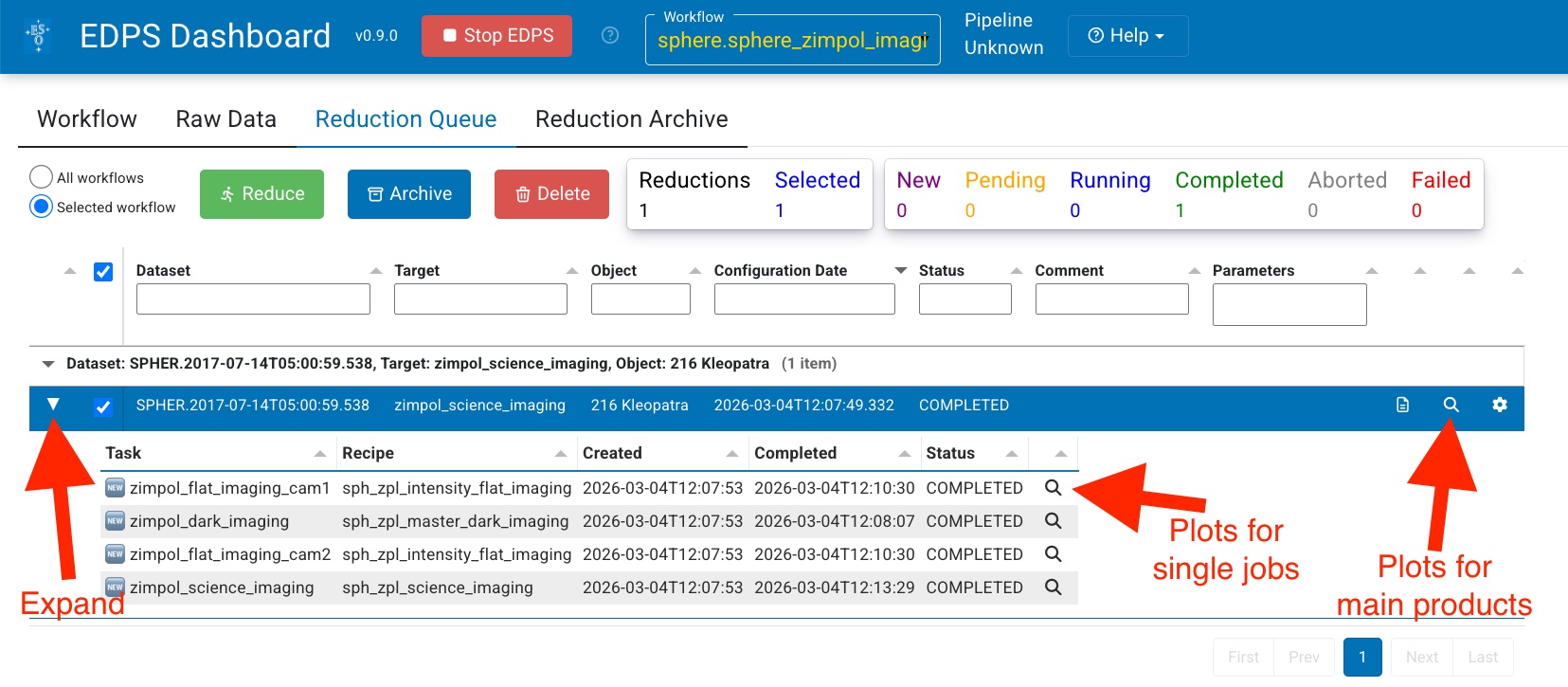
Those associated for the main product can be inspected by pressing the magnifying glass symbol at the right side of each dataset.
To inspect those associated to each individual job (if created),
Expand the desired dataset by pressing the black arrow on its left. The list of jobs will appear with the associated status (COMPLETED, RUNNING, PENDING)
Press the magnifying glass symbol at the right side of the job you want to inspect. Only plots for completed jobs can be inspected.
Configuration of parameters: the configuration editor
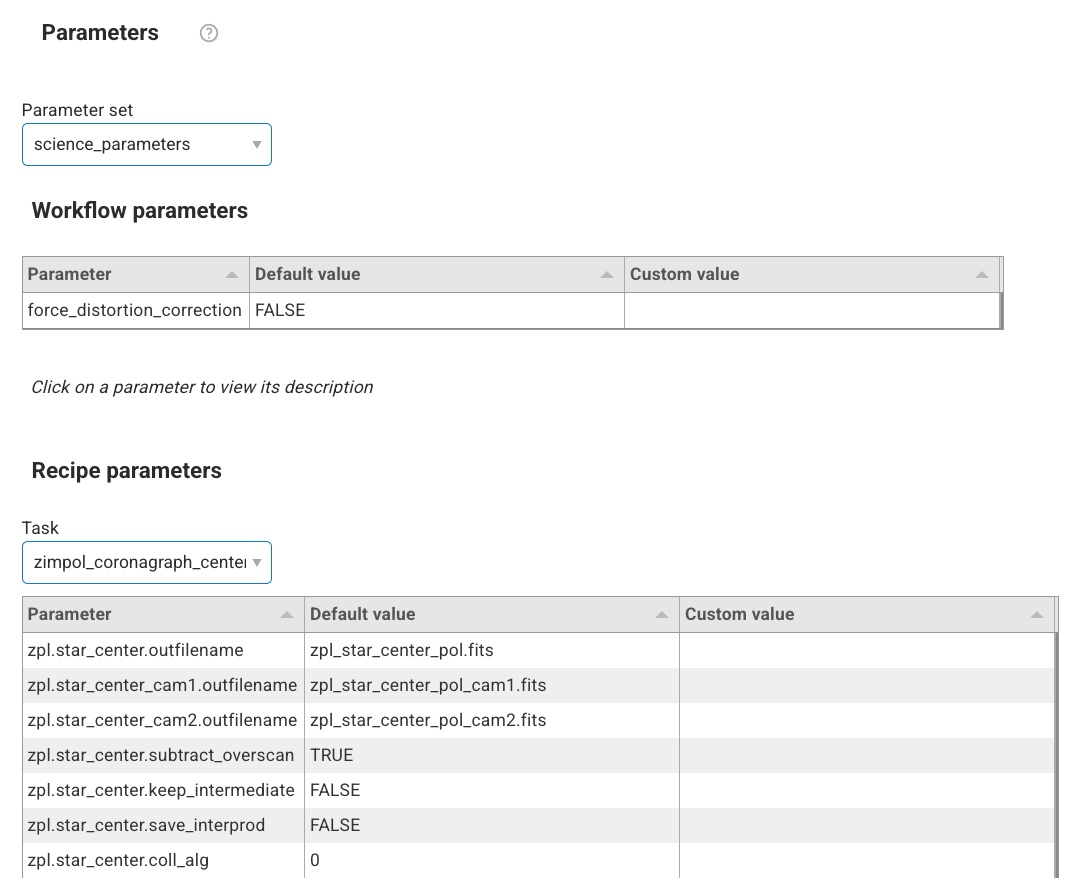
The data reduction of each dataset can be configured according to the scientific needs using an appropriate configuration editor. This editor allows to configure the data reduction for a given dataset by specifying workflow and recipe parameters.
The EDPS workflows contain two types of parameters and they both have default values that can be modified to improve the data reduction.
Workflow parameters are global and they are applied to the entire workflow. They are accessible both in the
Raw Datatab, prior to the creation og a dataset, and in theReduction Configurationeditor, in theReduction queuetab. Note: some workflow parameters were already configured before creating the dataset and sending it to the reduction queue. Here, they can be changed again. Please, note that the parameters have an effect only on the files that are already in the dataset. If one specifies a parameter that should include extra files in the dataset (e.g., the inclusion of more calibrations), files are not added and the reduction might fail. If you need to change a parameter that modifies the dataset content, please go back to the Raw data tab and create a new dataset.Recipe parameters are specific to the individual recipes and can be configured per task. They are accessible in the
Reduction Configurationeditor, in theReduction queuetab.
To open the Reduction configuration editor, click on
the wheel button  next to the dataset you desire to configure the reduction for. A window with the
configuration editor appears as shown the figure below.
next to the dataset you desire to configure the reduction for. A window with the
configuration editor appears as shown the figure below.
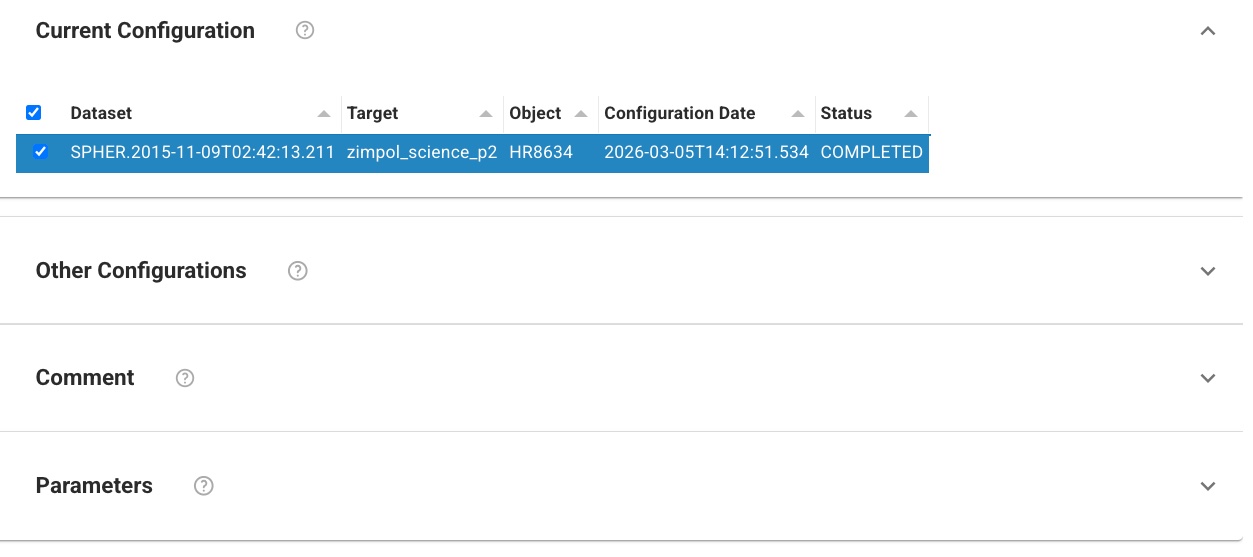
Fig. 8 The Reduction Configuration editor.
The editor is divided into 4 parts, which can be accessed pressing the corresponding expansion arrow.
Current configuration It indicates the name of the selected configuration for a given dataset.

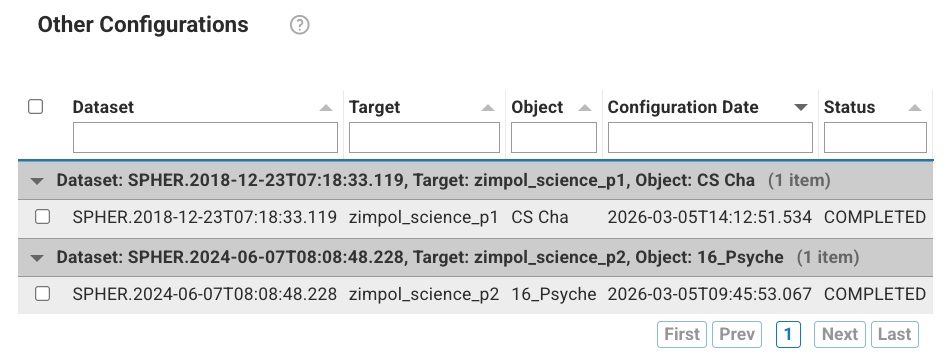
Other configurations It allows to specify other configurations, to which the changes shall be copied to.
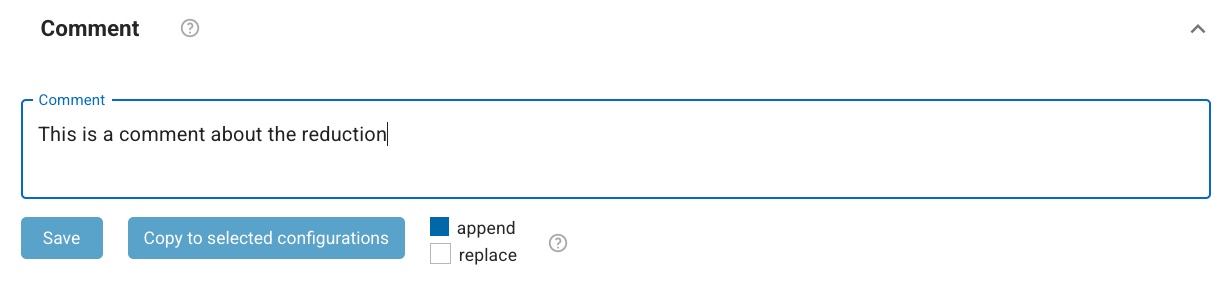
Comment It allows to specify a comment to describe the configuration. It is possible to append or replace a comment. Comments can be changed on all configurations. It is possible to save the comment for the current configuration only, or for all the selected configurations.
Parameters
This window is visible allows to:
Select the parameter set. A pre-determined list of workflow parameters and recipe parameters for a given use case. For the majority of the cases, the “science” parameter set can be used.
Edit the workflow parameters. These are parameters that regulates the reduction strategy, e.g. whether to use a given calibration or not, or to trigger a certain reduction step. Note that if the changes imply that some files not in the dataset are needed, the reduction might fail. In case, go back to the raw data tab, edit the workflow parameters there, and recreate the datasets.
Edit the recipe parameters. These are parameters associated to the recipe of a given task. Note: the same recipe parameters can be configured differently for the tasks that run the same recipe. Default parameters are shown (albeit some parameters can be dynamic, e.g.
EDPSchanges their value depending on the type of input data).
Change the values according to the needs and then select whether to save it to the current or the selected configurations. Note, complete configurations cannot be modified, new configurations will be automatically created instead.
Troubleshooting
This section provides guidance for diagnosing and resolving common issues encountered during the SPHERE-ZIMPOL data-reduction cascade.
Vertical pairs of bright and dark pixels
For long exposure times (DET.DIT1 > 50 s), charge traps may appear in the ZIMPOL detector. Those are defects in the CCD lattice that temporarily capture electrons during the charge transfer and release them with a time delay, producing vertical pairs of dark and bright pixels. See Figure Fig. 9 as an example.
Small errors in the charge transfer accumulate over time. The effect can appear at shorter exposure times in FastPolarimetry mode and may also be present in calibration frames such as FLAT,LAMP or FLAT,POL100.
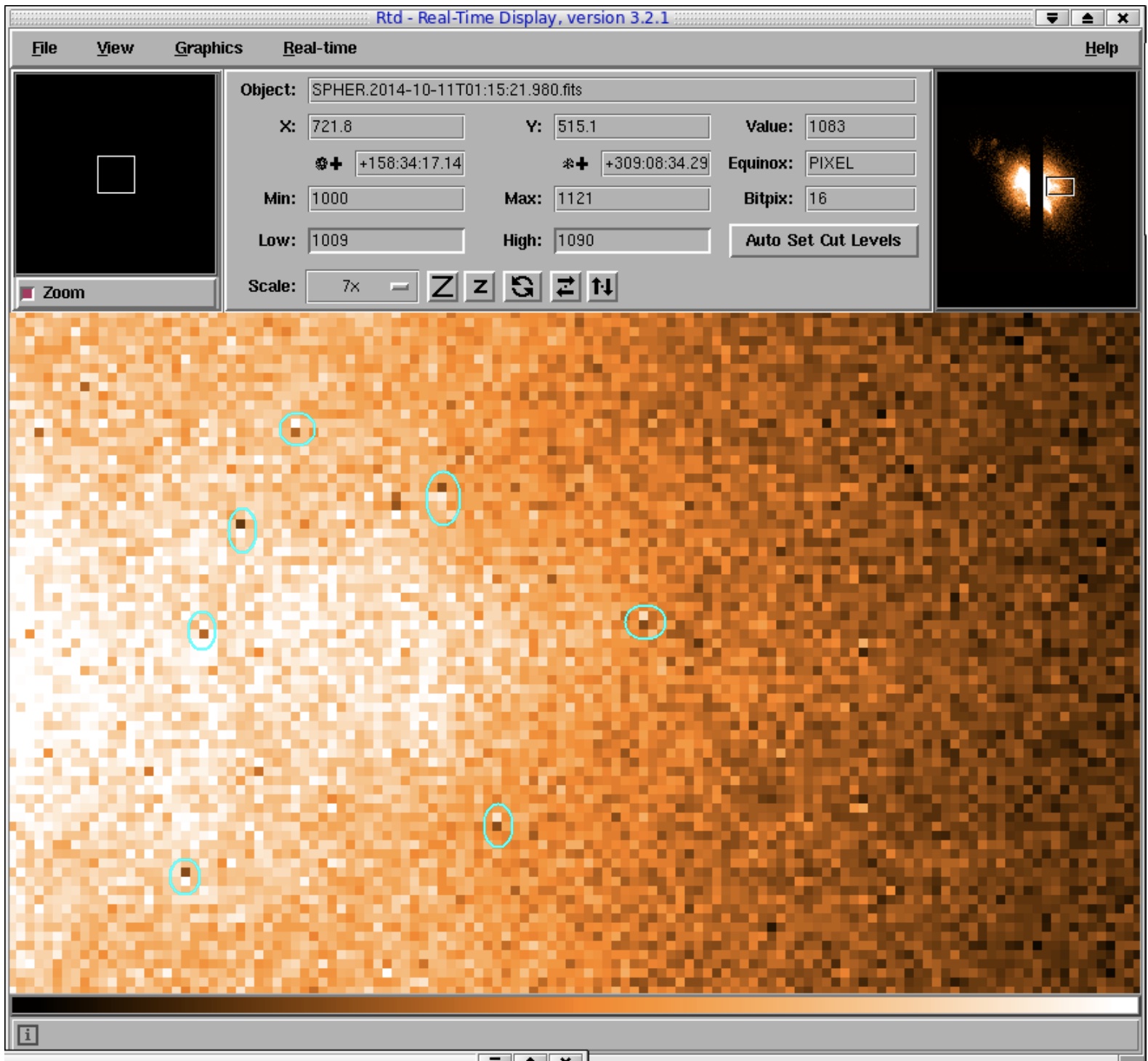
Fig. 9 Vertical pairs of bright and dark pixels marked in cyan caused by charge traps in the ZIMPOL detector.
Image Incorrectly Rotated / Signal Smeared out 
The task zimpol_coronagraph_center_imaging uses the instrument pipeline recipe sph_zpl_star_center_img
to identify waffle spots and determine the position of the target behind the coronagraph.
In some cases the detection threshold of 10σ is too high and the recipe cannot identify
the target’s position. In such a case the science recipe (sph_zpl_science_imaging, sph_zpl_science_p?)
will rotate the frames around an incorrect position which will smear out the signal.
If you see such behaviour you may try to reduce star_center_img.sigma to 5.
Go to top
Go to SPHERE EDPS tutorial index